

Dynamic Groups Page#
The Dynamic Groups page displays the list of dynamic groups. The page is available via Cluster > Dynamic Groups in the left navigation panel.
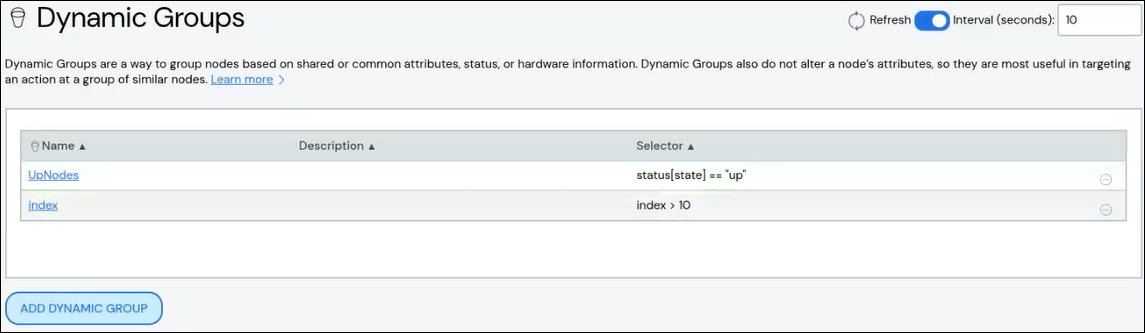
A dynamic group provides a way to group nodes based on shared or common attributes, status, or hardware information. They are most useful when targeting an action, such as a reboot, to a group of similar nodes.
Filter Nodes by Dynamic Group#
There are two ways to filter existing nodes by dynamic group:
On the Nodes page, select an existing dynamic group from the Dynamic Group drop-down list. The list of nodes updates to show only nodes within that dynamic group.
On the Dynamic Groups page, click the More menu
 on the far
right of the row for the dynamic group and select the Apply to nodes
action. The Nodes page appears with the dynamic group applied and the
list of nodes filtered to show only nodes within that dynamic group.
on the far
right of the row for the dynamic group and select the Apply to nodes
action. The Nodes page appears with the dynamic group applied and the
list of nodes filtered to show only nodes within that dynamic group.
Create Dynamic Group#
To create a dynamic group:
Click Add Dynamic Group.
Add details about the dynamic group.
Name: Required. Names must start with an alphabet character, not a number.
Selector: Required. For an example that includes specifying a selector, see Dynamic Groups.
Click Add Dynamic Group to save your changes.
The new dynamic group appears in the list at the top of the page.
[Optional] After saving the group, use the View Matches button on the View Dynamic Group pane to display a list of nodes that match the dynamic group definition.
Tip
You can also create a dynamic group from the Node Filtering section of the Nodes Page page by entering a selector and clicking the Save button.
Edit Dynamic Group#
To update a dynamic group:
Click the dynamic group name to open the dynamic group details, then click Edit Dynamic Group. Alternatively, click the More menu
on
the far right of the row and select the Edit action.The Edit Dynamic Group pane populates with the dynamic group details.
Make updates to the dynamic group.
Click Save to modify the dynamic group.
[Optional] After saving your changes, use the View Matches button to display a list of nodes that match the dynamic group definition.
Clone Dynamic Group#
Cloning a dynamic group creates a copy of an existing dynamic group with a new name and the same selector. To clone a dynamic group:
Click the More menu
on the far right of the row and select the
Clone action. The Clone Dynamic Group from window opens with the
existing dynamic group's name pre-populated in the From Dynamic Group field.Enter a name for the new dynamic group in the To Dynamic Group field.
Click Clone to create the new dynamic group.
(Optional) Edit the new dynamic group to change attributes, such as the selector string.
Delete Dynamic Group#
To delete a dynamic group, click the More menu on the far right of
the row and select the Delete action.