

Images Page#
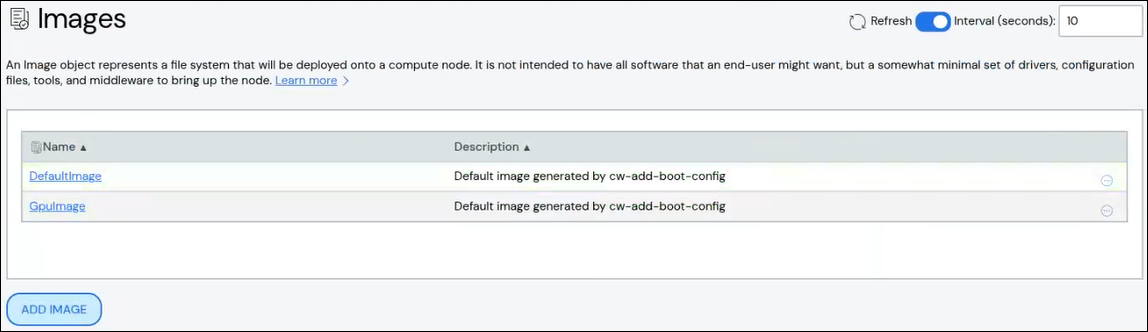
An initial image, DefaultImage, is created during initial ClusterWareAI ™ installation. You can create additional images from an ISO or network-accessible package repository.
Use the Images page to create and manage images. The page is available via Provisioning + SW > Images in the left navigation panel.
Create Image#
To create an image:
Click Add Image.
Add details about the image.
Name: Required. Names must start with an alphabet character, not a number.
Description: Optional.
Parent: Optional. Use to track the origin of the image. No configuration or attributes are inherited when using this field.
Distros: Optional. Use this to associate the image with the distro used for creation.
Image File: Optional. Browse to an image file. After selecting an image file, the Size and Checksum fields populate with the image file data.
Frozen: Freezing an image prevents future changes, including updates to image details, removing data, or deleting the image. For details, see Freezing an Image.
Click Add Image to save your changes.
The new image appears in the list at the top of the page.
Edit Image#
To edit an image:
Click the image name to open the image details, then click Edit Image. Alternatively, click the More menu
 on the far right of
the row and select the Edit action.
on the far right of
the row and select the Edit action.The Edit Image pane populates with the image details.
Make updates to the image details. You can also download an existing image file by clicking the Download Image button.
Click Save to modify the image.
Download Image File#
Images typically have an associated image file. To download a copy of the file,
click the More menu on the far right of the row and select the
Download Image action.
Clone Image#
Cloning an image creates a copy of an existing image with a new name and the same configuration. To clone an image:
Click the More menu
on the far right of the row and select the
Clone action. The Clone Image from window opens with the existing
image's name pre-populated in the From Image field.Enter a name for the new image in the To Image field.
Click Clone to create the new image.
(Optional) Edit the new image to change attributes, such as the image file.
Delete Image#
To delete an image, click the More menu on the far right of the
row and select the Delete action.