

ARS Policy Page#
The ARS Policy page lists the health checks, remedies, and actions used with the ClusterWareAI ™ health monitoring system (CHMS) and Auto Remediation Service (ARS) to monitor and resolve compute node health issues. The page is available via Auto Remediation > ARS Policy in the left navigation panel.
The ClusterWareAI software has a set of default health checks, remedies, and actions. Use this page to modify the default health checks, remedies, and actions or to add new ones based on the defaults.
Health Checks#
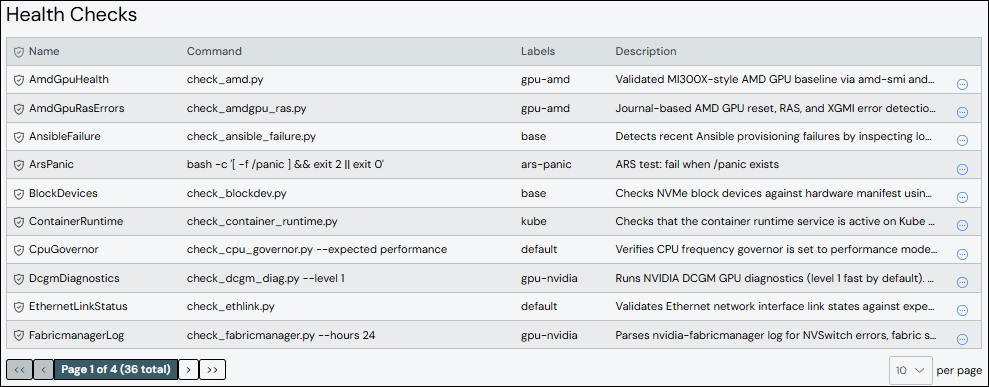
The Health Checks panel shows existing health checks.
Create Health Check#
To create a health check:
Click Add Health Check.
Add details about the health check.
Name: Required. Names must start with an alphabet character, not a number.
Command: Required. The script command and any arguments used to determine compute node health. Specify a command from an existing health check or from a custom health check.
Labels: Optional. Used to group health checks that should run on the same nodes. For example, the
kubelabel is used for health checks that apply to compute nodes using Kubernetes.
Other fields are optional, but may have default values if left unset. See Health Check Fields for details.
Click Save.
The new health check appears in the list at the top of the panel.
Edit Health Check#
To update a health check:
Click the health check name to open the health check details, then click Edit Health Check. Alternatively, click the More menu
 on
the far right of the row and select the Edit action.
on
the far right of the row and select the Edit action.Make updates to the health check.
Click Save to modify the health check.
Delete Health Check#
To delete a health check, click the More menu on the far right of
the row and select the Delete action.
Note
If you delete a health check that is associated with a compute node,
the health check script no longer runs even if the health check still
appears in the _ars_checks reserved attribute on the node. Even though
the check does not run on the associated node, it is recommended to remove
the deleted check from associated compute nodes to avoid confusion.
Remedies#
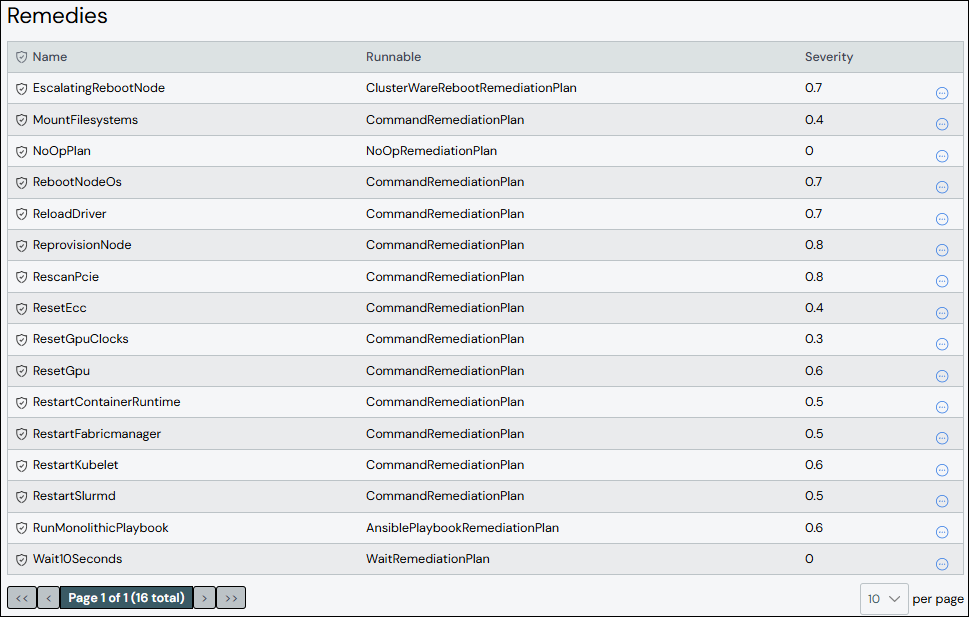
The Remedies panel shows existing remedies.
Create Remedy#
To create a remedy:
Click Add Remedy.
Add details about the remedy.
Name: Required. Names must start with an alphabet character, not a number.
Runnable: Required. Use a runnable from an existing remedy.
Description: Optional.
Severity: Required. Severity indicates disruption to running workloads. Enter a value on a 0.0-1.0 float scale.
Impact: Required. Impact indicates production capacity consumption of the remedy. Enter a value on a 0.0-1.0 float scale.
Arguments: Optional. Arguments apply to the specified runnable.
Click Save.
The new remedy appears in the list at the top of the panel.
Edit Remedy#
To update a remedy:
Click the remedy name to open the remedy details, then click Edit Remedy. Alternatively, click the More menu
on the far right of the row
and select the Edit action.Make updates to the remedy.
Click Save to modify the remedy.
Delete Remedy#
To delete a remedy, click the More menu on the far right of
the row and select the Delete action.
Actions#
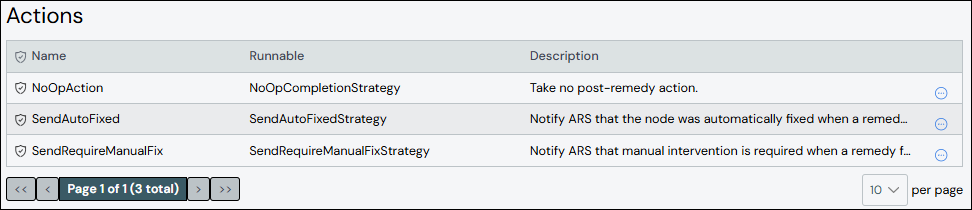
The Actions panel shows existing actions.
Create Action#
To create an action:
Click Add Action.
Add details about the action.
Name: Required. Names must start with an alphabet character, not a number.
Description: Optional.
Runnable: Required. Use a runnable from an existing action.
Arguments: Optional. Arguments apply to the specified runnable.
Click Save.
The new action appears in the list at the top of the panel.
Edit Action#
To update an action:
Click the action name to open the action details, then click Edit Action. Alternatively, click the More menu
on the far right of the row
and select the Edit action.Make updates to the action.
Click Save to modify the action.
Delete Action#
To delete an action, click the More menu on the far right of
the row and select the Delete action.