

State Maps Page#
The State Maps page displays the list of state maps. The page is available via Cluster > State Maps in the left navigation panel.
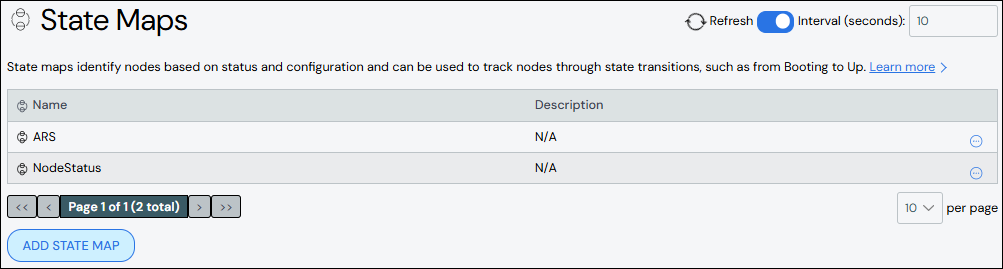
A state map provides a way to identify groups of compute nodes that share common attributes, status, or hardware information. They are used to track nodes when handling errors, updating firmware, performance testing, or other scenarios.
Create State Map#
To create a state map:
Click Add State Map.
Add a name and optional description for the state map. Names must start with an alphabet character, not a number.
Add at least one state.
Select a color for the state to visually differentiate it from other states in the same state map.
Provide a State Name. Names must start with an alphabet character, not a number.
Add a State Pattern. The pattern uses node selection language with basic comparators and logical operators.
[Optional] Add more states by clicking the Add button at the end of a row.
Click Save to create the state map.
The new state map appears in the list at the top of the page.
Edit State Map#
To update a state map:
Click the state map name to open the state map details, then click Edit State Map. Alternatively, click the More menu
 on
the far right of the row and select the Edit action.
on
the far right of the row and select the Edit action.The Edit State Map pane populates with the state map details.
Make updates to the state map.
Click Save to modify the state map.
Delete State Map#
To delete a state map, click the More menu on the far right of
the row and select the Delete action.