
Alerts Page#
Alerts are used to send ClusterWareAI ™ event information to notification systems, such as email or Slack. The Alerts page lists the alerts available within the ClusterWareAI software. The page is available via Auto Remediation > ARS Policy > Alerts in the left navigation panel.
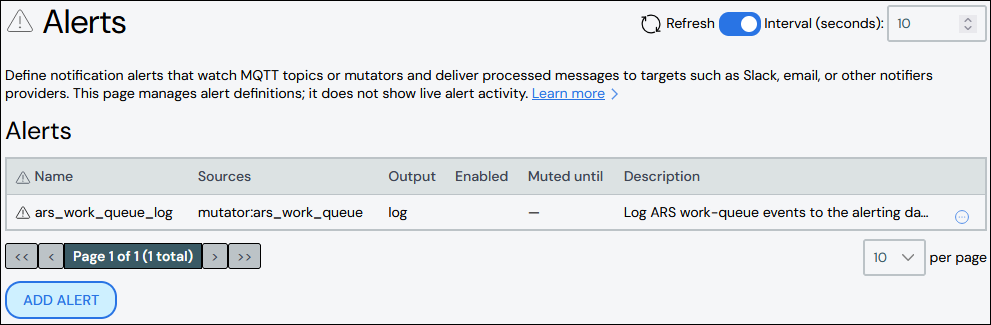
The ClusterWareAI software has a set of default alerts. Use this page to modify the default alerts or to add new alerts configured for your environment.
Create Alert#
To create an alert:
Click Add Alert.
Add details about the alert.
Name: Required. Names must start with an alphabetic character, not a number.
Description: Optional.
Sources: Required. Add one or more sources to the alert. Sources can be MQTT topics or mutators.
Output: Required. Select from the drop-down list of available output targets. See Supported Alert Targets for details.
Output Config: Required. JSON object or
key = valuepairs. Output config must match required schema for the selected output target.Mute: Optional. Mutes the alert and prevents it from sending indefinitely or for a set time period.
Frozen: Optional. When enabled, the alert cannot be modified via the GUI or command line.
Click Save.
The new alert appears in the list at the top of the panel.
Edit Alert#
To update an alert:
Click the alert name to open the alert details, then click Edit Alert. Alternatively, click the More menu
 on the far right of the row
and select the Edit action.
on the far right of the row
and select the Edit action.Make updates to the alert.
Click Save to modify the alert.
Clone Alert#
Cloning an alert creates a copy of an existing alert with a new name and the same configuration. To clone an alert:
Click the More menu
on the far right of the row and select the
Clone action. The Clone Alert from window opens with the existing
alert's name pre-populated in the From Alert field.Enter a name for the new alert in the To Alert field.
Click Clone to create the new alert.
(Optional) Edit the new alert to change attributes, such as the source.
Delete Alert#
To delete an alert, click the More menu on the far right of
the row and select the Delete action.