

DPUs Page#
Data Processing Units (DPUs) are associated with existing ClusterWareAI ™ compute nodes. Most actions you can take on switches or compute nodes are also available on DPUs.
Use the DPUs page to create and manage DPUs. The page is available via Nodes > DPUs in the left navigation panel.
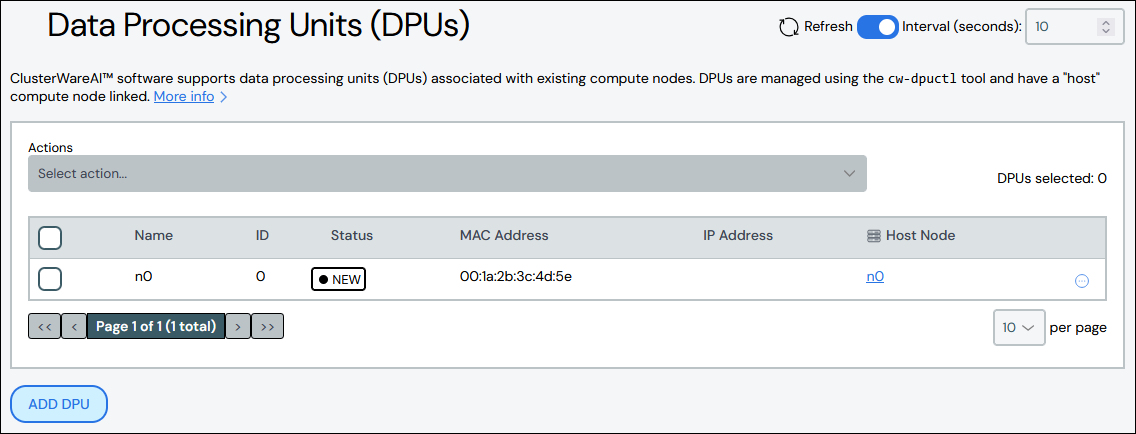
Create DPU#
To create a DPU:
Click Add DPU.
Add details about the DPU.
Description: Optional.
MAC Address: Required.
IP Address: Optional.
Host Node: Required. Select the host compute node name from the drop-down list.
Naming Pool: Optional. Specify an existing naming pool. If unset, uses the default naming pool. See Switch Naming Pools for details and examples.
Groups: Optional. Specify an existing attribute group. All DPUs are added to the DefaultAttribs attribute group. See Attribute Groups for details.
Attributes: Optional. Specify DPU-specific attributes in
name = valueformat.
Click Save. The new DPU appears in the list at the top of the page.
Edit DPU#
To edit a DPU:
Click the DPU name to open DPU details, then click Edit DPU. Alternatively, click the More menu
 on the far right of the row
and select the Edit action.
on the far right of the row
and select the Edit action.The Edit DPU panel populates with the DPU's details.
Make updates to the DPU.
Click Save to modify the DPU.
DPU Power Actions#
You can reboot or shut down a DPU using the More menu on the far
right of the row. To reboot or shut down multiple DPUs, select the DPUs
in the table and use the Reboot or Shutdown action from the Actions
menu above the table.
Join/Leave Group#
DPUs can be added to or removed from Attribute Groups. You can only add
DPUs to or remove them from one attribute group at a time. The
Join Group and Leave Group actions are available from the More menu
on the far right of the table row or from the Actions menu above
the table. In the window that appears, select the name of the attribute group
you want to add the DPU(s) to or remove the DPU(s) from.
Delete DPU#
To delete a DPU, click the More menu on the far right of the
row and select the Delete action. To delete multiple DPUs, select the
DPUs in the table and use the Delete action from the Actions menu
above the table.