

ARS Event Feed Page#
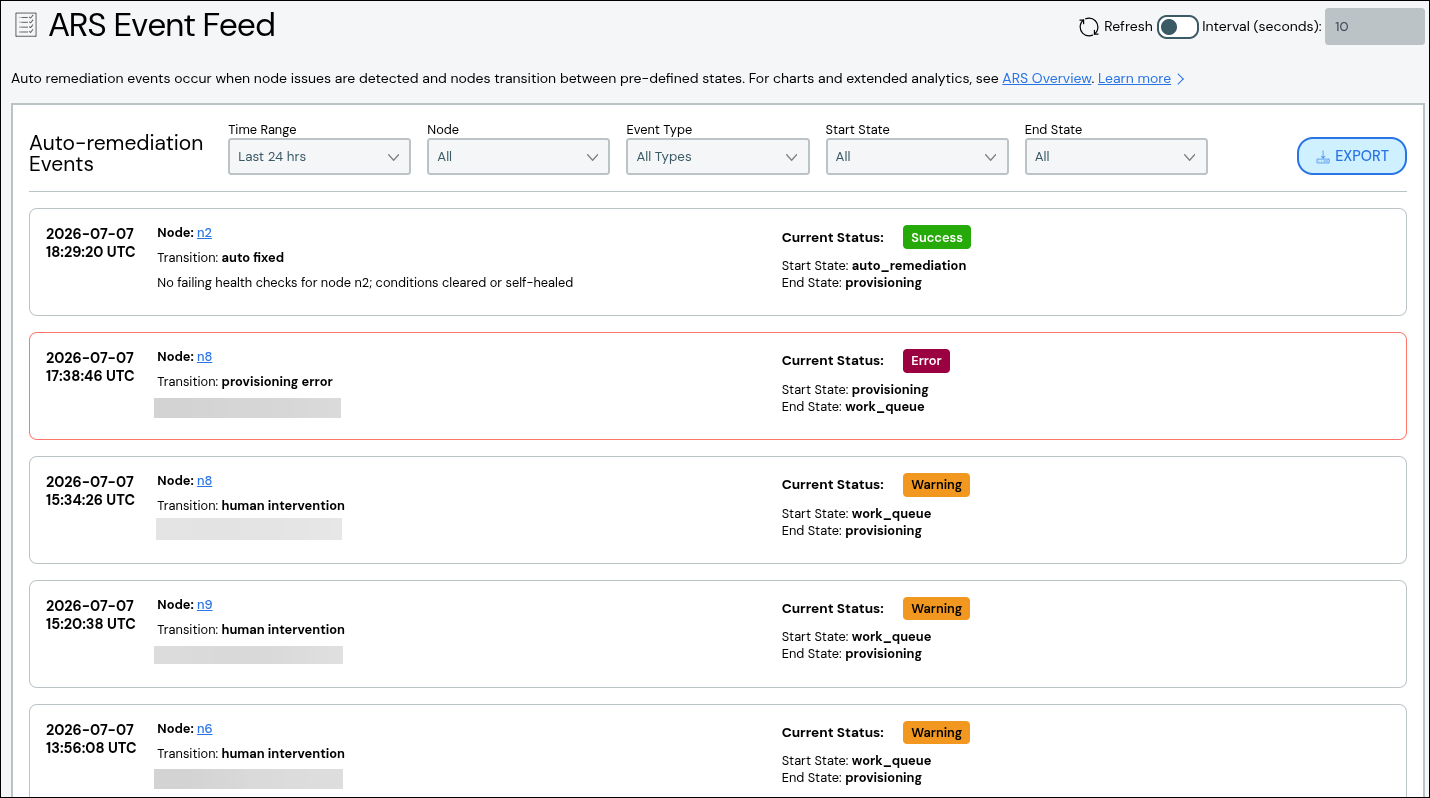
The ARS Event Feed page displays the Auto Remediation Service (ARS) state map transition events that have occurred over a configurable time period. The page is available via Auto Remediation > Event Feed in the left navigation panel.
Note
The ARS Event Feed page shows event data reported to the current head node. In a cluster with multiple head nodes, compute nodes are split equally between head nodes. Each head node shows ARS data for the associated child compute nodes and not the entire cluster.
The unfiltered view of ARS events on this page shows all ARS state transition events that have occurred in the cluster in chronological order with the most recent at the top. Use these events to determine trends or issues, such as if any nodes failed to automatically transition between ARS states or if a node is moving between states more frequently than expected. Each state transition event has a timestamp, impacted compute node, state transition, and event-related messages (if any). State transition events with a failure status may require extra attention.
Filter Events#
Use the filters at the top of the list to show only events that match the filters selected.
Available filters include:
Time Range: Show data for the selected time period. Default is last 24 hours. A range of last 4 to last 48 hours is available.
Node: Show data for a specific node. This list is also available on the ARS Node Details Page.
Event Type: Show data for a specific transition between ARS states. The transitions are represented by the dotted lines on the state map diagram available from the ARS State Machine Page. For example, the Error Detected transition shows events for nodes moving from the Available to Draining state.
End State: Final state of the ARS state transition.
Start State: Starting state of the ARS state transition.
For example, you can filter to show only events with the Auto Remediation state as the starting state to see which compute nodes the ClusterWareAI ™ software remediated recently and detect trends that may require human investigation. For instance, if a compute node requires remediation daily, there may be a larger hardware problem depending on the health check failure that triggers the state transition.
Export Events#
The Export button creates and exports a JSON file with the event data currently shown in the list. If you applied filters, only the filtered data is exported. You can use the exported data for additional analytics.