
Remedies Page#
The Remedies page lists the remedies used with the ClusterWareAI ™ Auto Remediation Service (ARS) to resolve compute node health issues. The page is available via Auto Remediation > ARS Policy > Remedies in the left navigation panel.
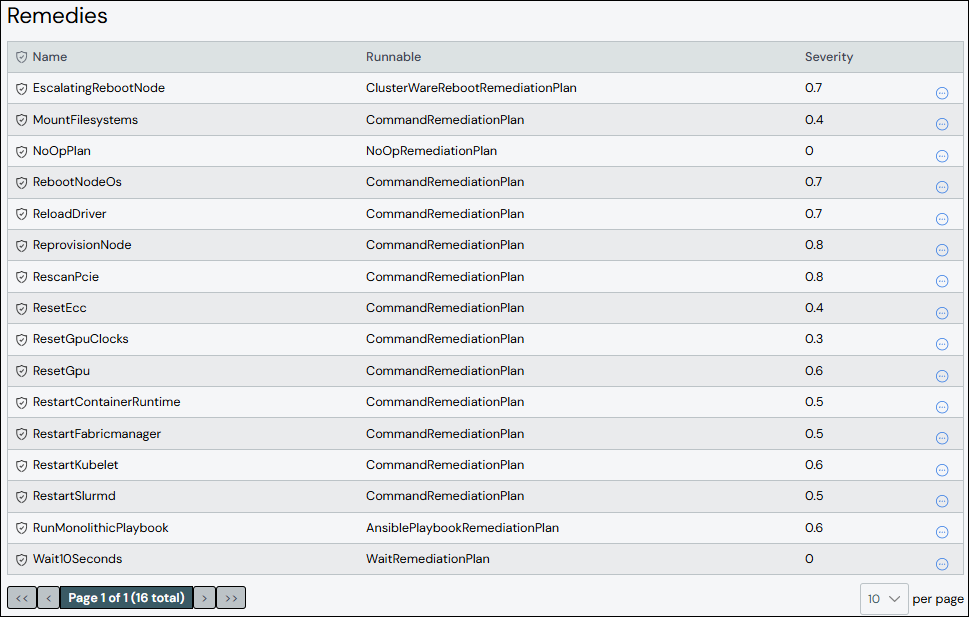
The ClusterWareAI software has a set of default remedies. Use this page to modify the default remedies or to add new ones based on the defaults.
Create Remedy#
To create a remedy:
Click Add Remedy.
Add details about the remedy.
Name: Required. Names must start with an alphabet character, not a number.
Runnable: Required. Use a runnable from an existing remedy.
Description: Optional.
Severity: Required. Severity indicates disruption to running workloads. Enter a value on a 0.0-1.0 float scale.
Impact: Required. Impact indicates production capacity consumption of the remedy. Enter a value on a 0.0-1.0 float scale.
Arguments: Optional. Arguments apply to the specified runnable.
Select Health Checks: Optional. Select health checks from the list of Available health checks and click Add to move the health check name to the Selected list.
Click Save.
The new remedy appears in the list at the top of the panel.
Edit Remedy#
To update a remedy:
Click the remedy name to open the remedy details, then click Edit Remedy. Alternatively, click the More menu
 on the far right of the row
and select the Edit action.
on the far right of the row
and select the Edit action.Make updates to the remedy.
Click Save to modify the remedy.
Clone Remedy#
Cloning a remedy creates a copy of an existing remedy with a new name and the same configuration. To clone a remedy:
Click the More menu
on the far right of the row and select the
Clone action. The Clone Remedy from window opens with the existing
remedy's name pre-populated in the From Remedy field.Enter a name for the new remedy in the To Remedy field.
Click Clone to create the new remedy.
(Optional) Edit the new remedy to change attributes, such as the impact, severity, or arguments.
Delete Remedy#
To delete a remedy, click the More menu on the far right of
the row and select the Delete action.